How do I change my account settings?

Your account details live on your Profile page. Open the menu and tap Profile.
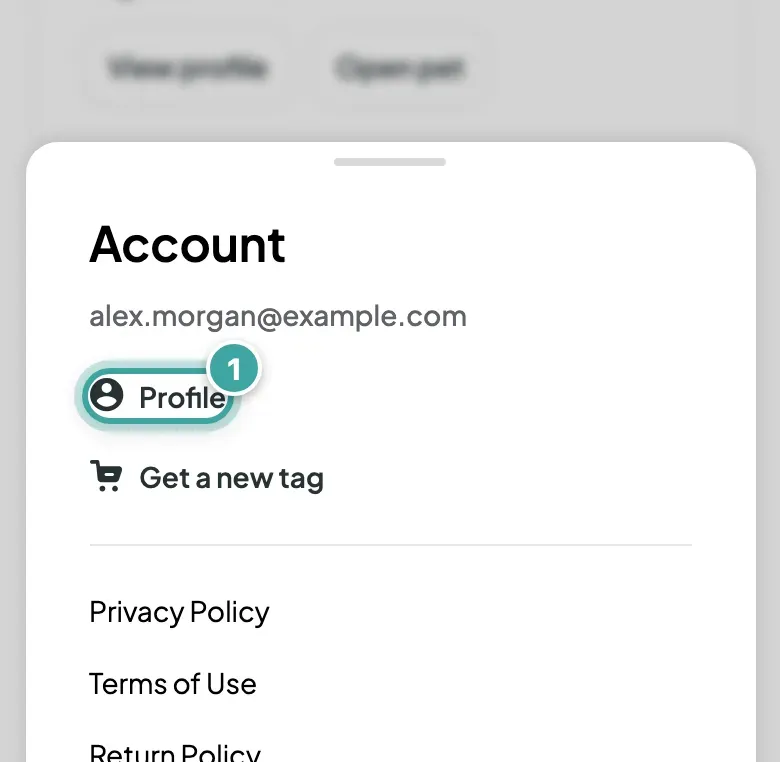
The account menu open at the bottom of the screen, showing the account email, Profile, Get a new tag and links to the policies. Profile is highlighted.
Open the menu and tap Profile.

Your name and photo

Type your new name, or tap Upload photo to choose a new picture. Then tap Save.
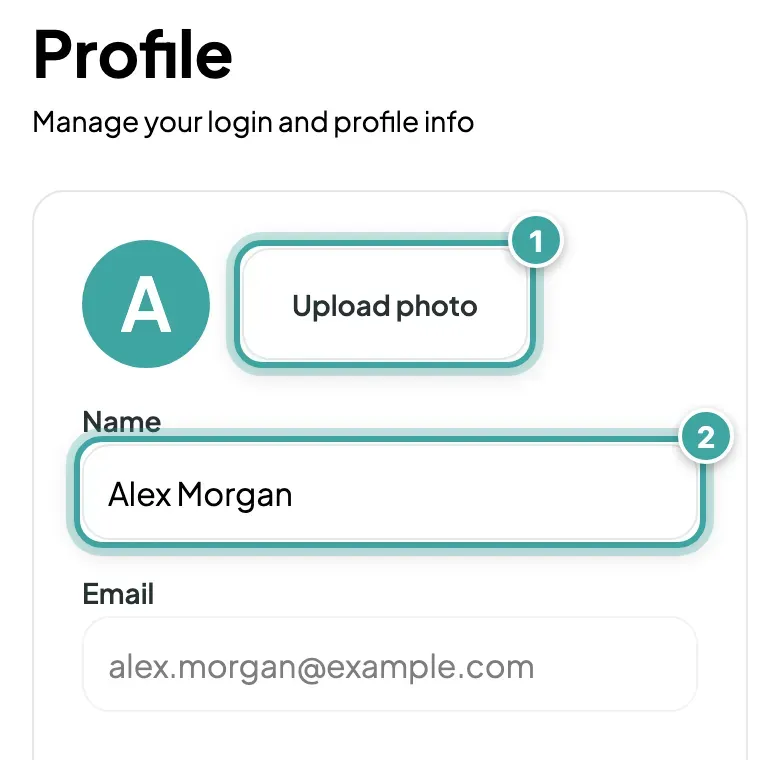
The Profile page with the account photo placeholder, the Upload photo button marked 1 and the Name field, filled in with Alex Morgan, marked 2.
Change your name, or tap Upload photo.
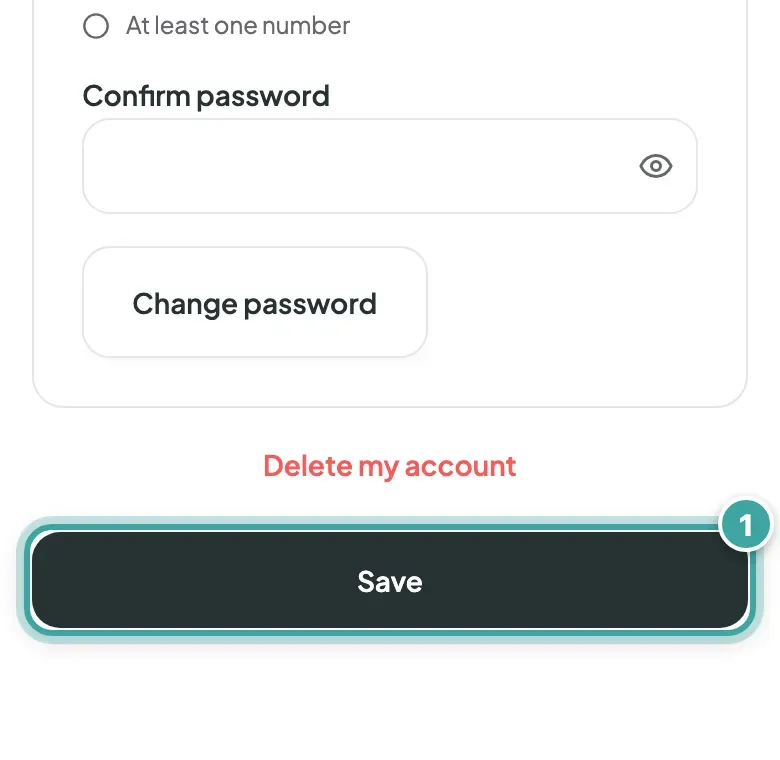
The bottom of the Profile page: the Delete my account link and, below it, the Save button, which is highlighted.
Then tap Save.

Your password

Under Reset password:

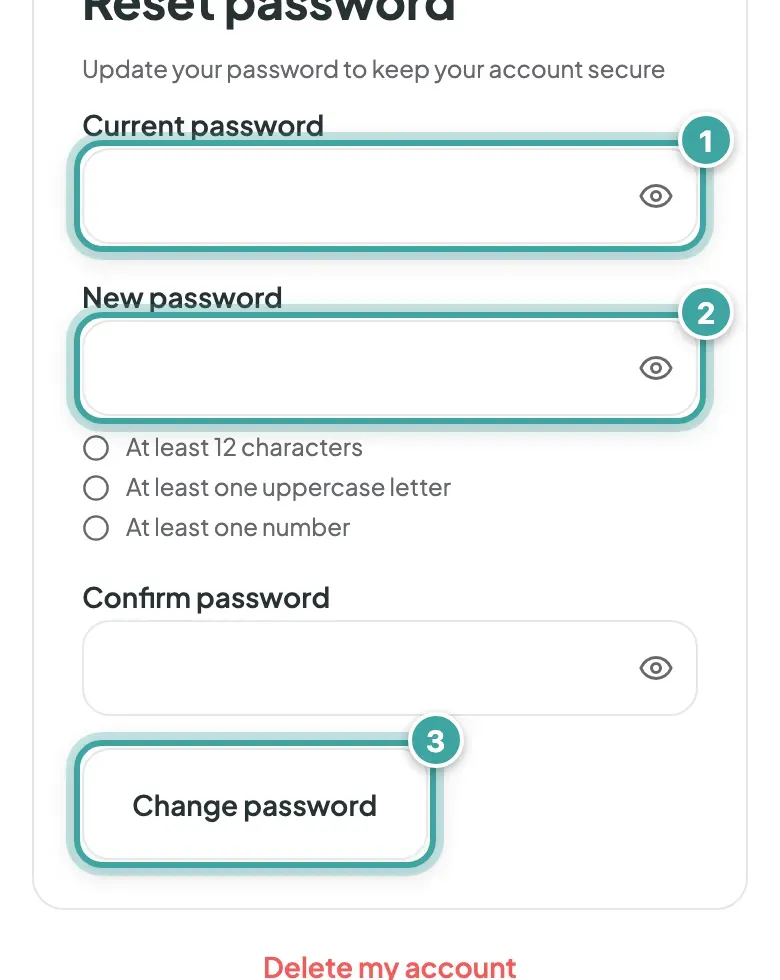
  1. Enter your Current password. If you signed up with Google and haven't set a password yet, you won't see this field.
  2. Enter your New password, then type it again in Confirm password.
  3. Tap Change password.
The Reset password section of the Profile page: Current password marked 1, New password marked 2 with Confirm password below it, and the Change password button marked 3.
Under Reset password, enter your current and new password, then tap Change password.

Your email

You can't change your email on the Profile page. If you need a different one, email [email protected] and we'll help.

Looking for your pet's details?

They're on your pet's page, not your Profile. See how to change your pet's info or update your contact details.

Still need help?

Can't find what you're looking for? Get in touch with our support team

Email support

Write to us at [email protected]

Send email

WhatsApp Business

Available Monday-Friday, 9am-6pm

Chat on WhatsApp