How do I upload or change my pet's photos?

Photos are the first thing a finder sees, so they're worth a minute.

Add or change photos

  1. Go to My pets and open your pet.
  2. On the Pet tab, tap Add photo and choose a picture. You can add up to 6.
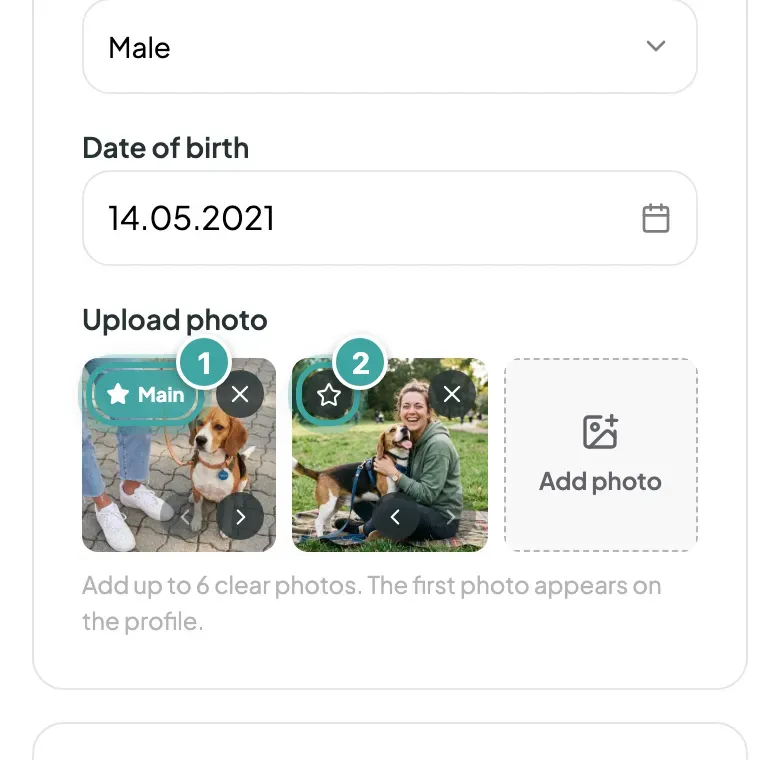
  3. The first photo is the main one, marked Main. To pick a different one, tap the star on it (Use as main photo). You can also move photos left or right, or remove them.
  4. Tap Continue to save.

Finders can look through all your photos on your pet's page.
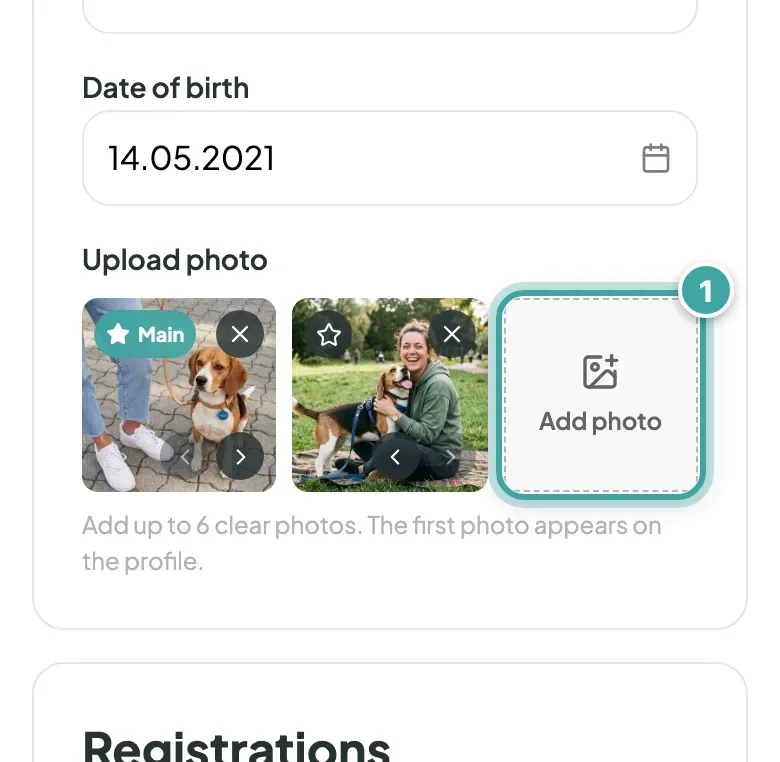
The Upload photo area of Buddy's Pet tab, showing his two photos and the Add photo tile, which is highlighted, with the hint "Add up to 6 clear photos".
On the Pet tab, tap Add photo and choose a picture.
Buddy's two photos. The first is labelled Main (1); the second has a star button in its corner, Use as main photo (2), as well as remove and move buttons.
The first photo is the main one. Tap the star on another to use it instead.

Tips

  • A clear, well-lit photo of your pet's face works best.
  • Add one that shows their markings or whole body, so they're easy to recognise.

No photo yet? The page still works, with our logo in its place.

Still need help?

Can't find what you're looking for? Get in touch with our support team

Email support

Write to us at [email protected]

Send email

WhatsApp Business

Available Monday-Friday, 9am-6pm

Chat on WhatsApp